Always On Availability Group Detail
The Always On Availability Group Detail dashboard provides comprehensive health and replication metrics for a single Availability Group, allowing you to monitor replica status, track failover history, analyze data movement performance, and identify synchronization issues. This dashboard is essential for troubleshooting AG problems, verifying failover readiness, and ensuring your high availability infrastructure operates optimally.
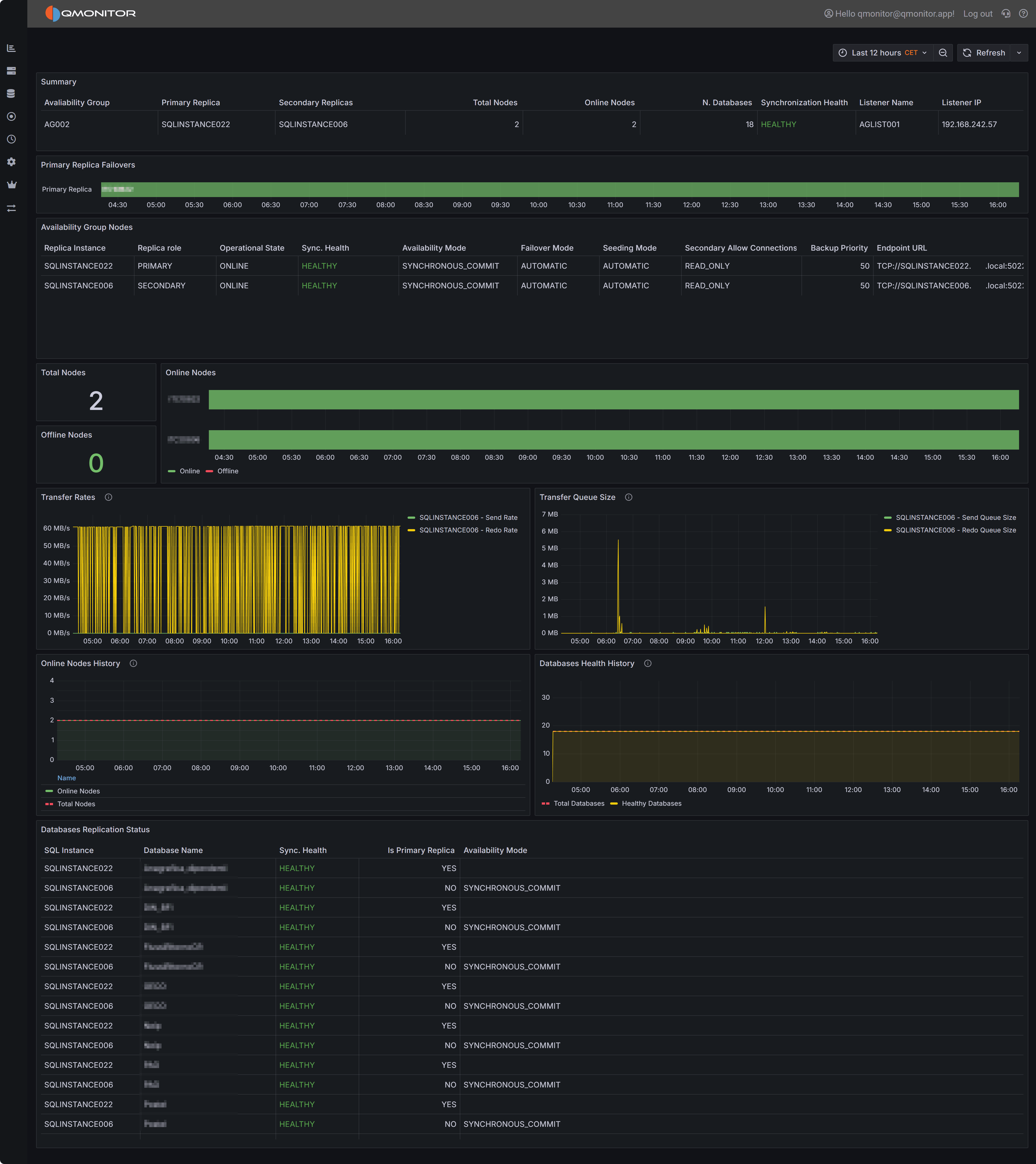 Availability Group Detail dashboard showing replica health, failover history, and replication metrics
Dashboard Sections
AG Summary
The summary section at the top displays key information about the Availability Group configuration and current state:
Availability Group displays the AG name for reference.
Primary Replica shows the current primary replica hostname. This is the replica handling all read-write operations and serving as the transaction log source for secondary replicas.
Secondary Replicas lists all configured secondary replica hostnames, showing your AG topology at a glance.
Total Nodes displays the total number of replicas configured in the AG, including primary and all secondaries.
Online Nodes shows how many replicas are currently online and reachable. This should equal Total Nodes in a healthy AG. Lower values indicate offline replicas that reduce redundancy and may prevent automatic failover.
N. Databases shows the number of databases protected by this AG.
Synchronization Health displays the overall synchronization state, typically “HEALTHY” when all databases on all replicas are synchronized and ready for failover, or showing issues when synchronization problems exist.
Listener Name displays the AG listener’s DNS name if configured. Applications should connect via this listener for automatic failover support.
Listener IP shows the IP address or addresses associated with the listener.
Primary Replica Failovers
The Primary Replica Failovers timeline visualizes which replica was primary at each point during the selected time range. This horizontal timeline shows the primary role assignment over time, with color-coded bars indicating which server held the primary role during each period.
Use this timeline to review recent failover history and understand failover frequency and patterns. Frequent failovers may indicate instability, while unexpected failovers during business hours require investigation. Correlate failover times with events from the Instance Overview or Events dashboards to identify what triggered role changes—planned maintenance, automatic failover due to health detection, or manual intervention.
Availability Group Nodes
The Availability Group Nodes table provides detailed configuration and status information for each replica:
Replica Instance shows the SQL Server instance name for each replica in the AG.
Replica role indicates whether the replica is currently PRIMARY or SECONDARY. Only one replica is primary at any time.
Operational State shows the current operational status of each replica (ONLINE, OFFLINE, etc.).
Sync. Health displays the per-replica synchronization status. “HEALTHY” indicates the replica is properly synchronized with the primary. Unhealthy states indicate synchronization problems requiring investigation.
Availability Mode shows whether the replica uses SYNCHRONOUS_COMMIT (waits for secondary acknowledgment before committing transactions, ensuring zero data loss) or ASYNCHRONOUS_COMMIT (commits without waiting, better performance but potential data loss during failover).
Failover Mode indicates whether the replica supports AUTOMATIC failover (can automatically become primary if the current primary fails) or MANUAL failover (requires manual intervention to become primary).
Seeding Mode shows whether the replica uses AUTOMATIC seeding (SQL Server automatically copies database files to initialize the replica) or MANUAL seeding (database files must be manually restored).
Secondary Allow Connections displays the read-intent settings for secondary replicas: NO (no connections allowed), READ_ONLY (only read-only connections allowed), or ALL (all connections allowed).
Backup Priority shows the priority value used for backup preference routing. Higher values indicate preferred backup targets when using AG-aware backup strategies.
Endpoint URL displays the database mirroring endpoint URL used for data movement between replicas.
R/O Routing URL shows the read-only routing address if configured, used to direct read-only queries to secondary replicas.
R/W Routing URL displays the read-write routing address if configured.
Important
Only replicas configured with SYNCHRONOUS_COMMIT and AUTOMATIC failover mode can participate in automatic failover. Asynchronous replicas or those with manual failover mode require manual intervention during primary failures, potentially increasing downtime.Node Availability Metrics
The Node Availability section provides KPIs and visualization of replica online status:
Total Nodes KPI shows the configured replica count for quick reference.
Offline Nodes KPI displays how many replicas are currently offline. This should be 0 in a healthy AG.
Online Nodes chart plots the number of online replicas over time during the selected interval. A consistently flat line at the total node count indicates stable availability. Dips indicate periods when replicas went offline, while fluctuating lines suggest flapping replicas with intermittent connectivity issues.
Transfer Rates and Queue Sizes
These charts visualize data movement performance between primary and secondary replicas:
Transfer Rates chart displays:
- Send Rate: How fast the primary replica sends transaction log records to secondaries, measured in MB/s or KB/s. Higher values indicate more transaction activity requiring replication.
- Redo Rate: How fast secondary replicas apply received transaction log records to their databases. Redo rate should keep pace with send rate to maintain synchronization.
Low or decreasing redo rates on secondaries indicate performance bottlenecks. Common causes include slow storage I/O on secondaries, CPU pressure preventing redo threads from keeping up, or blocking on secondaries due to read workloads holding locks that conflict with redo operations.
Transfer Queue Size chart shows:
- Send Queue Size: Amount of transaction log data (in KB or MB) waiting on the primary to be sent to secondaries. Growing send queues indicate network bandwidth limitations or secondary connectivity issues.
- Redo Queue Size: Amount of transaction log data received by secondaries but not yet applied. Growing redo queues indicate secondaries cannot keep pace with transaction volume, creating synchronization lag that increases RPO (potential data loss during failover) and may delay failover readiness.
Warning
Large Redo Queues Impact Failover: High redo queue sizes mean secondaries are behind the primary and need time to catch up before becoming failover-ready. During automatic failover, SQL Server waits for redo queue processing, increasing failover duration and application downtime. Monitor and address redo queue buildup proactively.Health History
The health history section provides time-series visualization of AG health trends:
Online Nodes History chart plots total nodes versus online nodes over time, showing historical availability patterns. Consistent alignment between total and online nodes indicates stable replica availability. Gaps indicate periods with offline replicas.
Database Health History chart shows total databases in the AG versus healthy databases over time. When these lines separate, one or more databases have become unsynchronized or unhealthy, requiring investigation. This may result from synchronization issues, suspended data movement, or database-specific problems.
Databases Replication Status
The Databases Replication Status table provides per-database synchronization details across all replicas:
SQL Instance shows which replica hosts each database copy.
Database Name identifies the database.
Sync. Health displays the synchronization status for this database on this replica. “HEALTHY” indicates proper synchronization with the primary, while other states indicate issues.
Is Primary Replica shows whether this row represents the primary copy (YES) or a secondary copy (NO).
Availability Mode displays the availability mode for this database replica, typically inheriting from the AG-level configuration but potentially overridden per database in some configurations.
Use this table to identify which specific databases have synchronization problems when overall AG health shows issues. Sort by Sync. Health to find unhealthy databases requiring attention. Filter by specific databases to see their status across all replicas.
Investigating Synchronization Issues
Growing Redo Queues: When redo queue sizes increase steadily, investigate secondary replica performance. Check the Instance Overview dashboard for the secondary—look for high CPU utilization, memory pressure, or I/O bottlenecks. Review the SQL Server error log on secondaries for redo thread errors or warnings. Consider whether read workloads on secondaries are causing blocking that interferes with redo operations.
Low Redo Rates: Consistently low redo rates relative to send rates indicate secondaries cannot keep pace with transaction volume. This may result from undersized hardware on secondaries compared to the primary, slow transaction log storage on secondaries, or configuration issues like insufficient max worker threads.
Increasing Send Queues: Growing send queues usually indicate network bandwidth limitations between replicas or secondary replicas that are offline or unreachable. Verify network connectivity, check for network saturation during peak periods, and ensure Windows Server Failover Clustering quorum is healthy.
Unhealthy Database Synchronization: Individual database synchronization issues may result from suspended data movement (check sys.dm_hadr_database_replica_states), insufficient secondary storage space preventing log application, or database-specific errors on the secondary (check SQL Server error log).
Frequent Failovers: Review the Primary Replica Failovers timeline to identify failover frequency and timing. Correlate failover times with system events, resource pressure, or operational activities. Unexpected automatic failovers may indicate intermittent primary replica health issues, aggressive health detection timeout settings, or network instability causing false failure detection.
Related Dashboards
Use the Instance Overview dashboard to check resource utilization and performance metrics on both primary and secondary replicas. High CPU, memory pressure, or I/O bottlenecks directly impact AG synchronization performance.
Review the SQL Server I/O Analysis dashboard to evaluate transaction log write performance on all replicas. Slow log I/O increases redo queue buildup and synchronization lag.
Check the Blocking dashboard if synchronization issues correlate with read workloads on secondary replicas. Blocking can interfere with redo thread operations and slow synchronization.
Monitor the Capacity Planning dashboard to ensure secondary replicas have adequate resources to handle both read workloads and redo operations without contention.