Jobs
Schedule Tasks with QMonitor
This page lists scheduled jobs and provides controls to create, filter,
inspect, and clean up job records.
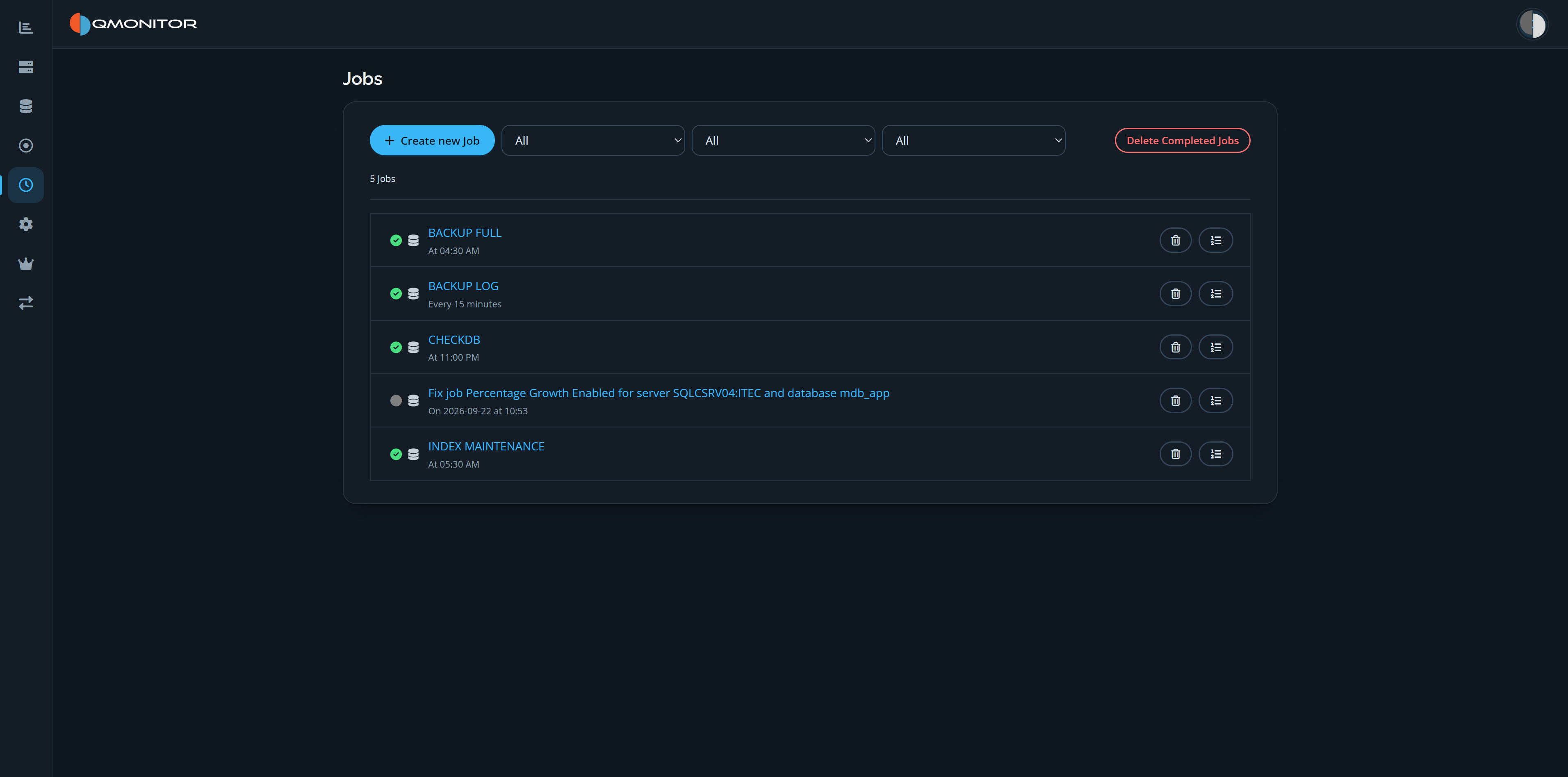 Jobs page showing filters, scheduled jobs, execution statuses, and row actions
Top controls
- Create new Job: opens the New Job page to define a job and its schedule.
- Filters:
- Job status: All, Not run, Failed, Succeeded, Executed — use this to
focus on the executions you care about.
- Instance: restrict the list to a single SQL instance.
- Job type: Manual jobs or Autofix jobs (automatic remediation).
- Delete Completed Jobs: removes completed job records.
Jobs list
- The count above the list shows how many jobs match the selected filters.
- Each row contains:
- Job status icon: visual state of the latest execution
- Green checkmark = completed successfully
- Blue spinner = running/in progress
- Red X = failed/error
- Job type: indicates the action (Execute query or Execute command).
- Name: job name; next to it (in smaller text) the schedule
description (for example “at 02:00” or “On 2025-11-01 at 09:00”).
- Delete: button to remove the job definition and its history.
- Show log: opens the execution log for the job to inspect output,
errors, and step details.
Row actions and navigation
- Click the job name to open the Job Detail page to edit or view the job.
- Use Show log to view recent runs, stderr/stdout, and execution status.
- Use Delete to remove obsolete jobs.
Tips
- Filter by Failed to quickly find jobs that need attention.
- Use the Instance filter to hand off job issues to the responsible DBA.
- Regularly remove completed jobs to keep the list manageable.
Define and edit scheduled jobs