Job Detail
Define and edit scheduled jobs
This page lets you review, create, and edit a scheduled job and its settings. Jobs can execute a T-SQL query against one or more instances or run an arbitrary command on one or more agents.
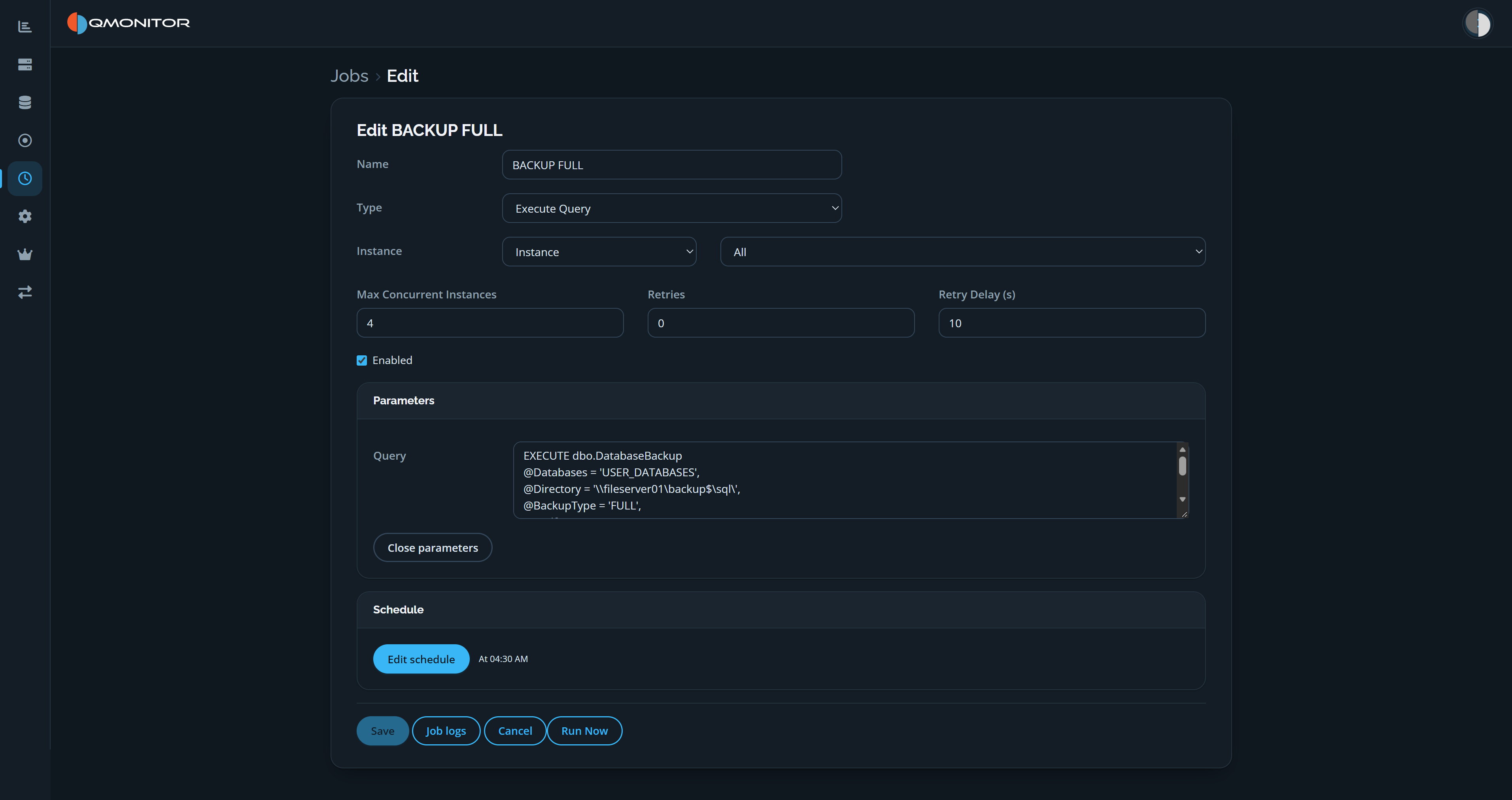 Edit Job page showing query settings, parameters, schedule, and job actions
Job properties
- Name: descriptive job name.
- Type: choose the job type:
- Execute Query — runs the specified SQL text against selected SQL instances.
- Execute Command — runs the specified command on one or more agents.
Execute Query controls
- Instance selection:
- First dropdown: choose selection mode (Instance, Instance Group, or Tag).
- Second dropdown: pick one Instance, Group, or Tag depending on the selection mode. Use groups or tags to target many instances.
- Max Concurrent Instances: maximum parallel executions:
- 1 = run sequentially (no parallelism).
- 0 = run against all selected instances in parallel.
- Choose a limit to avoid saturating CPU, I/O, or network (for example, limit concurrent backups to 5 to avoid disk flooding).
- Retries: number of retry attempts on failure.
- Retry delay (s): delay, in seconds, between retry attempts.
Execute Command controls
- Agent target: choose All Agents or select a specific agent to run the command. Commands are executed by the agent process on the host running the selected agent(s).
Common controls (both job types)
- Enabled: checkbox that enables or disables the job without deleting it.
- Parameters: editor containing the job’s query or command:
- For Execute Query jobs, the Query text runs against the target instances.
- For Execute Command jobs, the command is executed by the agent on the host.
- Schedule: click “Edit Schedule” to expand schedule settings:
- Type: Recurring or One-time.
- Cron Expression: enter a cron expression to define recurring schedules.
- Help: the Help button opens documentation that assists in crafting valid cron expressions.
- End Date: optional date when the schedule stops running.
Actions (bottom toolbar)
- Save: persist job definition and schedule.
- Run Now: immediately queue the job for execution (bypasses the schedule).
- Job logs: open the job logs page to inspect past runs and execution output.
- Cancel: discard unsaved changes and return to the Jobs list.
Notes and tips
- Use small, targeted schedules during testing and run “Run Now” to validate behavior before enabling wide production schedules.
- Restrict Max Concurrent Instances for heavy operations (backups, restores, large ETL) to prevent resource contention.
- Commands executed by agents require appropriate agent permissions on the host
- Sysadmin acknowledgement
- If an agent connects to a SQL instance using sysadmin credentials, the job will only run if the instance definition includes the “Acknowledge you are running jobs as a sysadmin” checkbox. This guard prevents accidental execution of high-privilege operations on instances where explicit consent has not been given.
- Toggle the acknowledgement on the Instance Details page. Jobs that require sysadmin rights will display a warning if the acknowledgement is not enabled for the target instance.